Invite a user to your project
You can invite teammates to collaborate on a Gendox project. The invited person receives an email with a link to join your organization and access the project you selected.
Quick demo
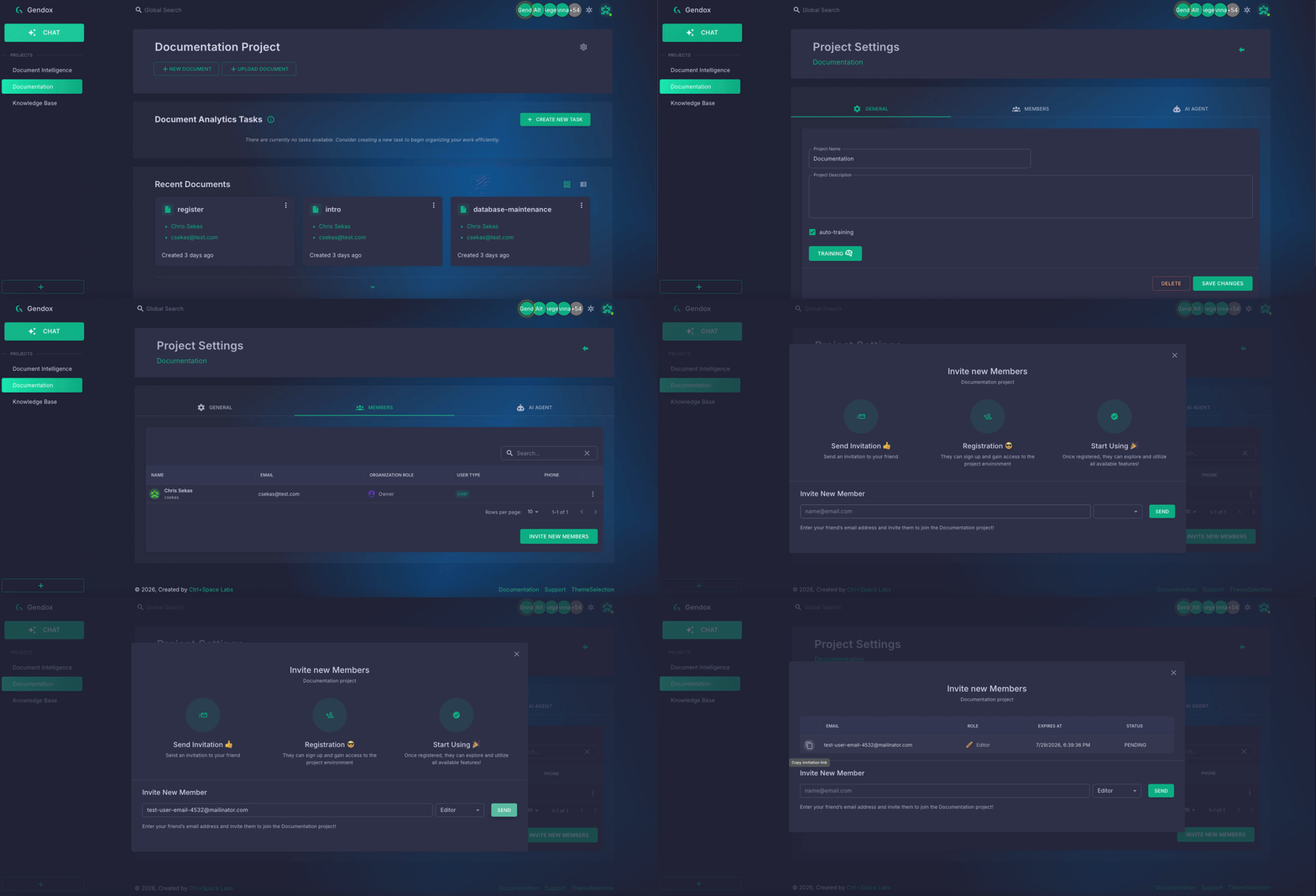
An invitation is valid for the specific project you invite them to, not the entire organization. To give someone access to multiple projects, send a separate invitation for each one.
Open Project Settings
- In the sidebar, select the project you want to share.
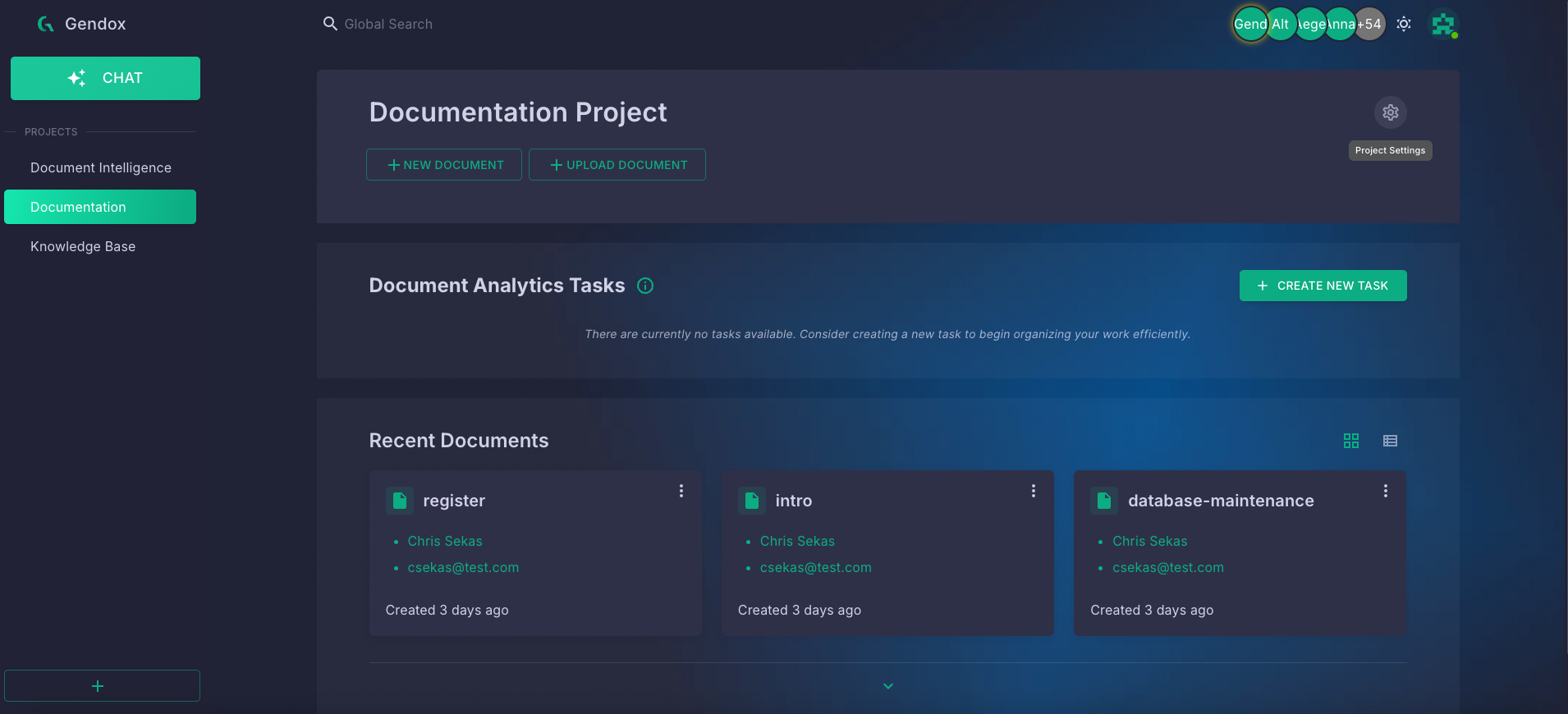
- On the project page, click the Project Settings gear icon next to the project name.
Go to the Members tab
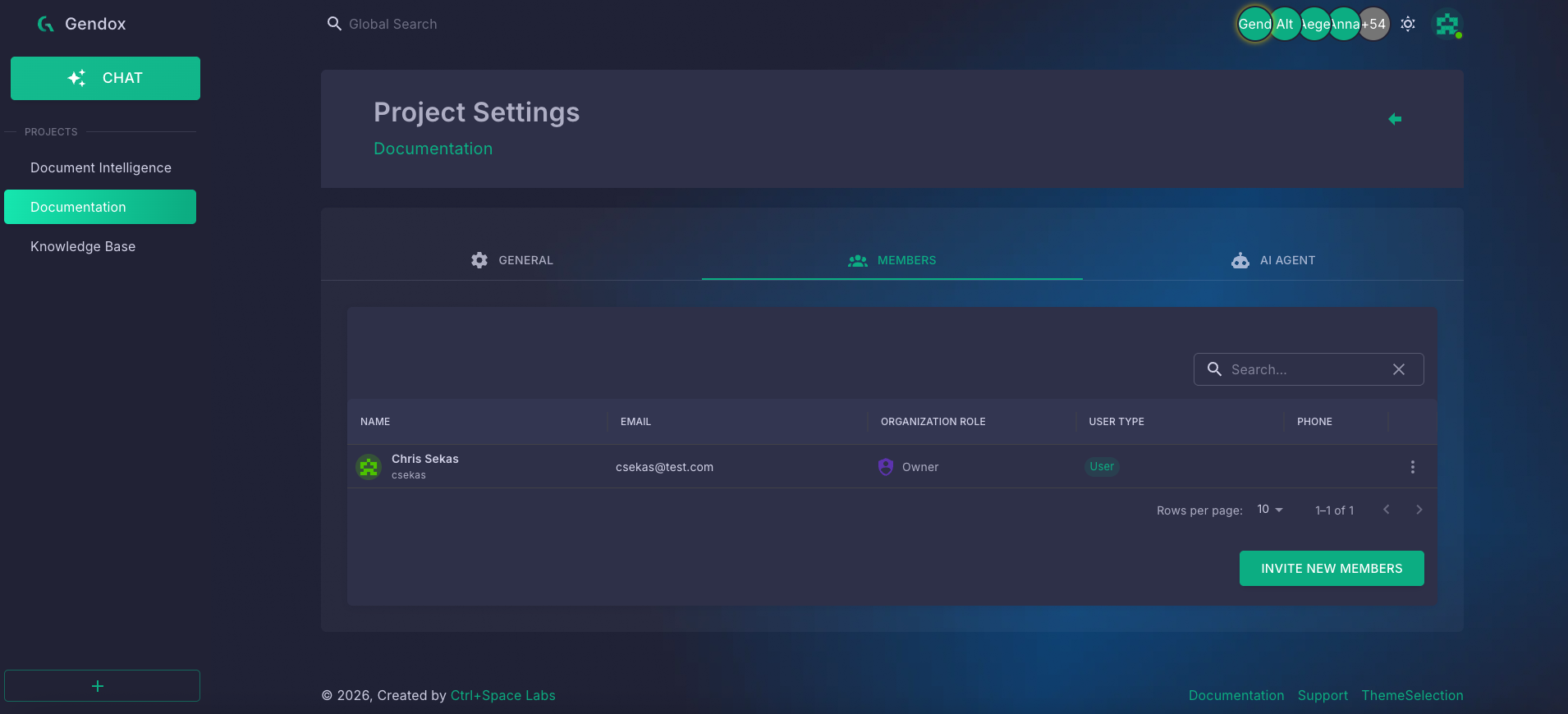
- In Project Settings, open the MEMBERS tab.
- Review the current project members.
- Click INVITE NEW MEMBERS.
Send the invitation
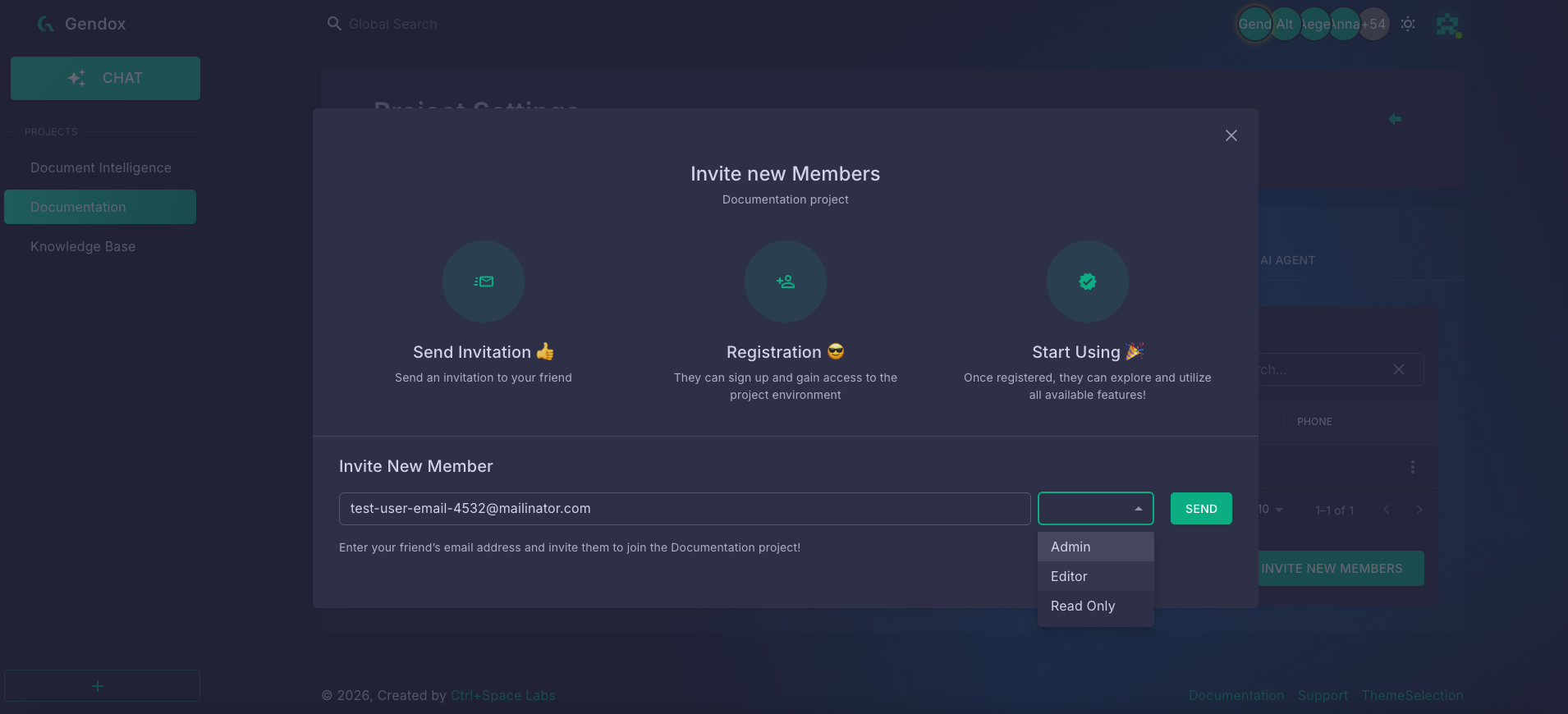
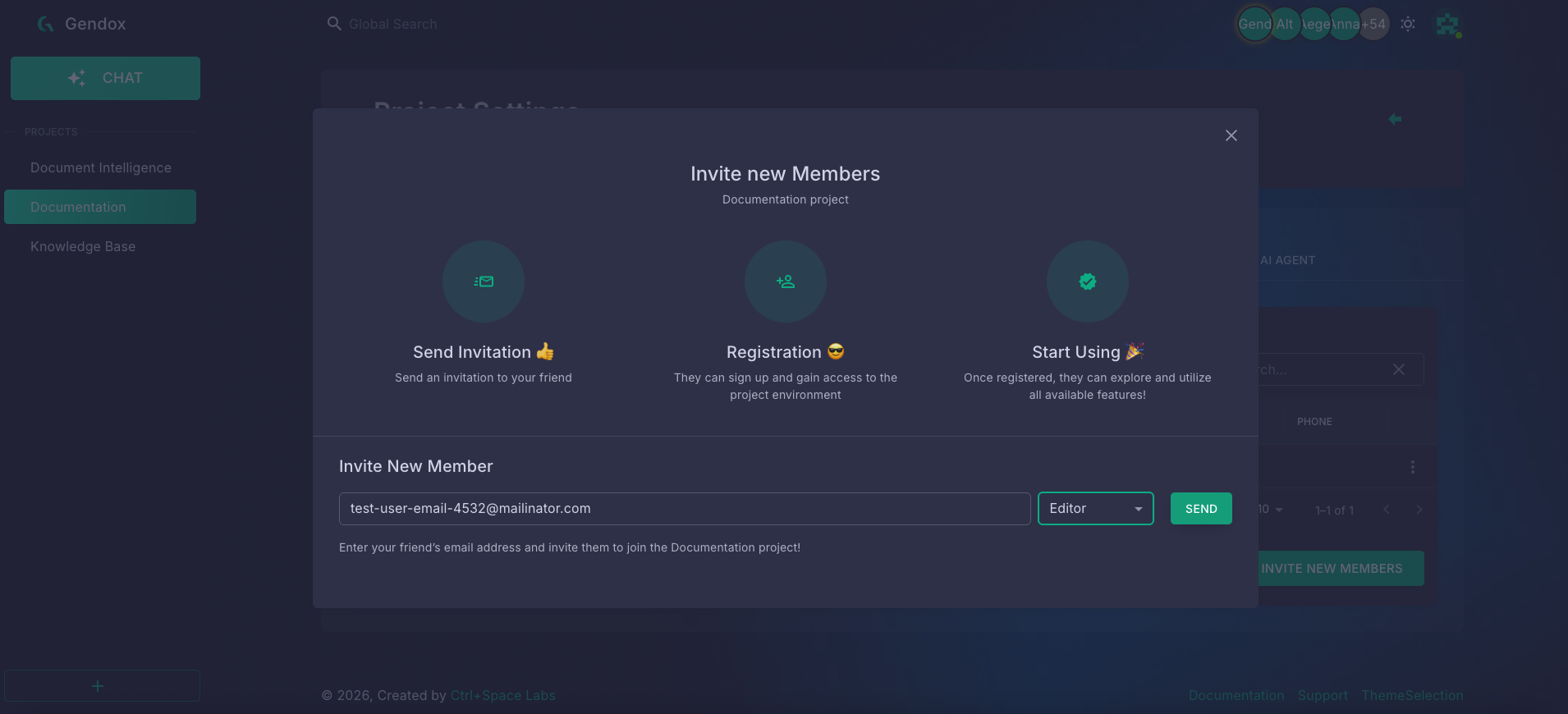
- In the Invite new Members dialog, enter the invitee's email address.
- Choose a role from the dropdown:
- Admin — can manage project settings and members
- Editor — can create and edit documents
- Read Only — can view project content without making changes
- Click SEND.
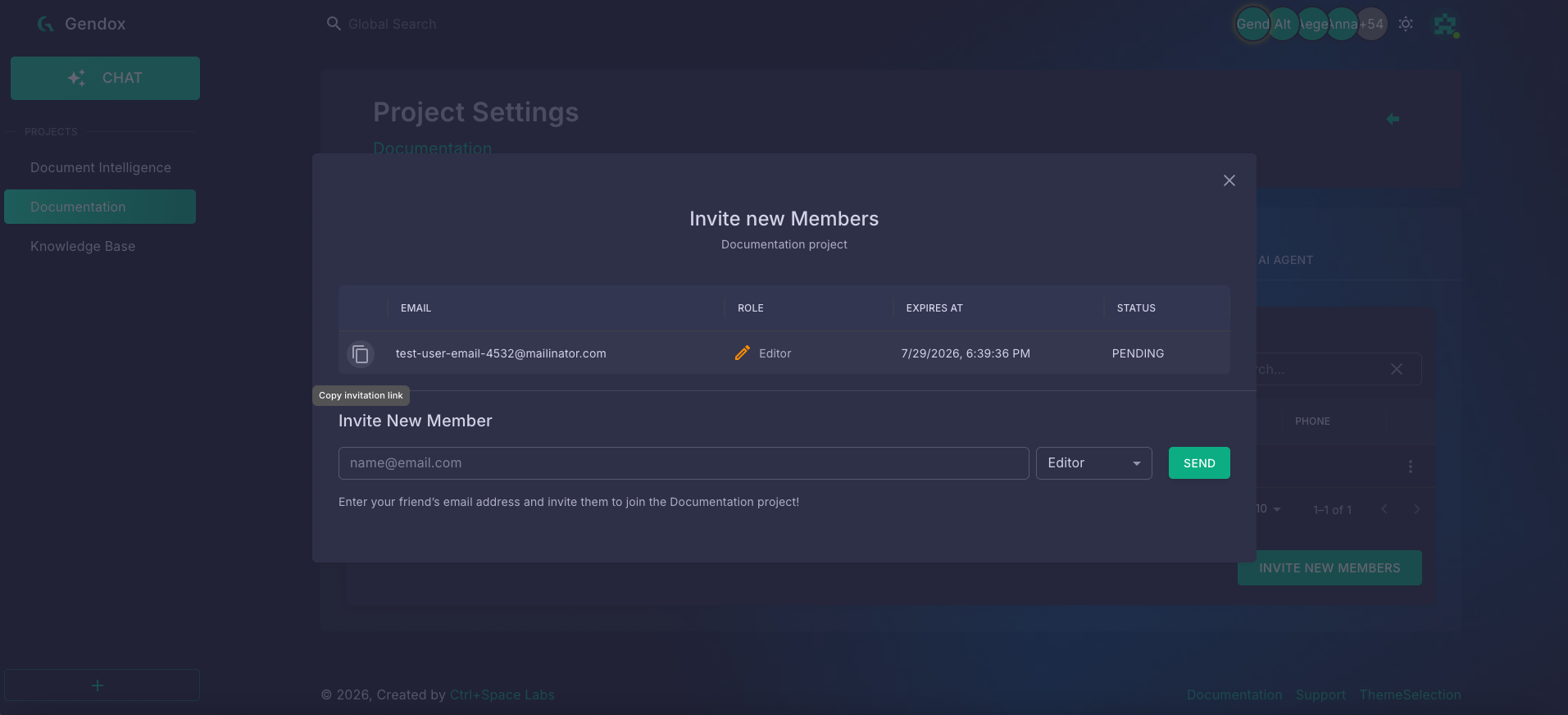
After sending, the invitation appears in the list with a PENDING status and an expiration date. You can also copy the invitation link manually using the copy icon next to the email address.
What the invitee receives
The invited person gets an email from Gendox with an Accept Invitation link. The link expires on the date shown in the email.
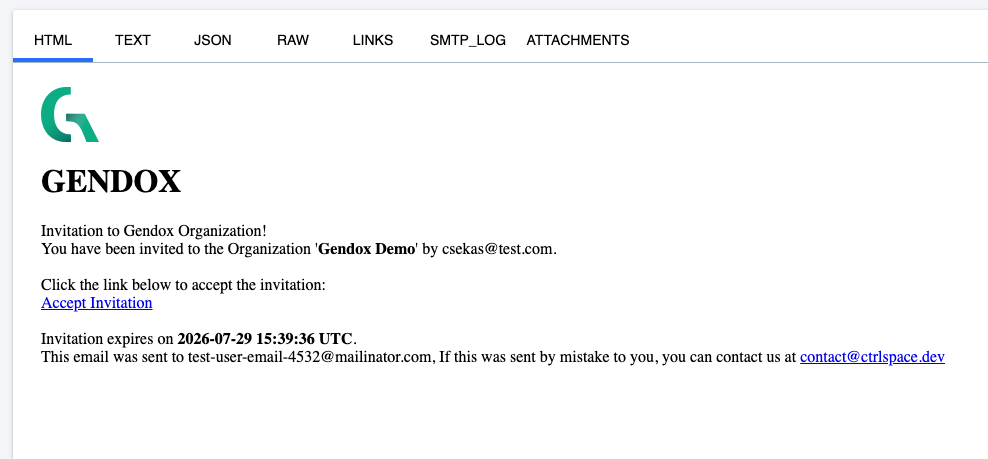
To complete onboarding, the invitee should click Accept Invitation and follow the steps in Gendox Registration.