Setup your first project
A Gendox Project combines two basic components:
- AI Agents
- A collection of files the agent learns from
An AI Agent is a virtual assistant that can help you, trained on the content you upload in each project.
Quick demo
Upload a document, then open Chat and ask the agent questions grounded in your files.
Create a new project
-
After your first login, Gendox will ask you to name your Organization. This is your main account — where you can also invite other users to collaborate.
-
You’ll then be prompted to create your first project. Just give it a name and click SUBMIT — you're ready to go!
-
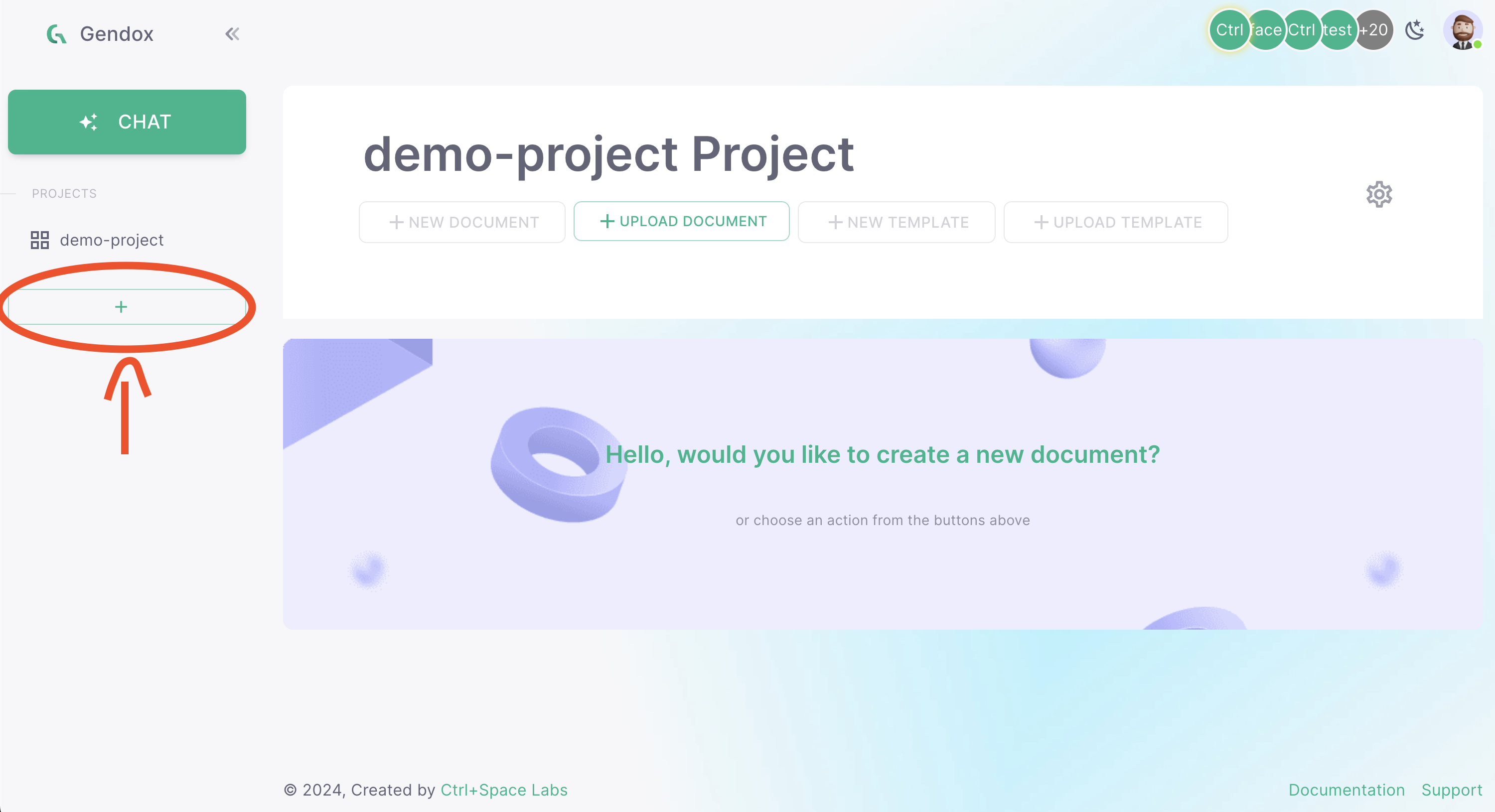
Later, you can create additional projects anytime by clicking the "+" button in the sidebar:
-
In the sidebar, click the project's name to enter the project's page.
Setup the AI Agent
An AI Agent is made up of:
- The underlying LLM
- Role/Behavior definition
- Knowledge (your uploaded files)
Each project comes with one AI Agent created automatically.
To configure the Agent:
-
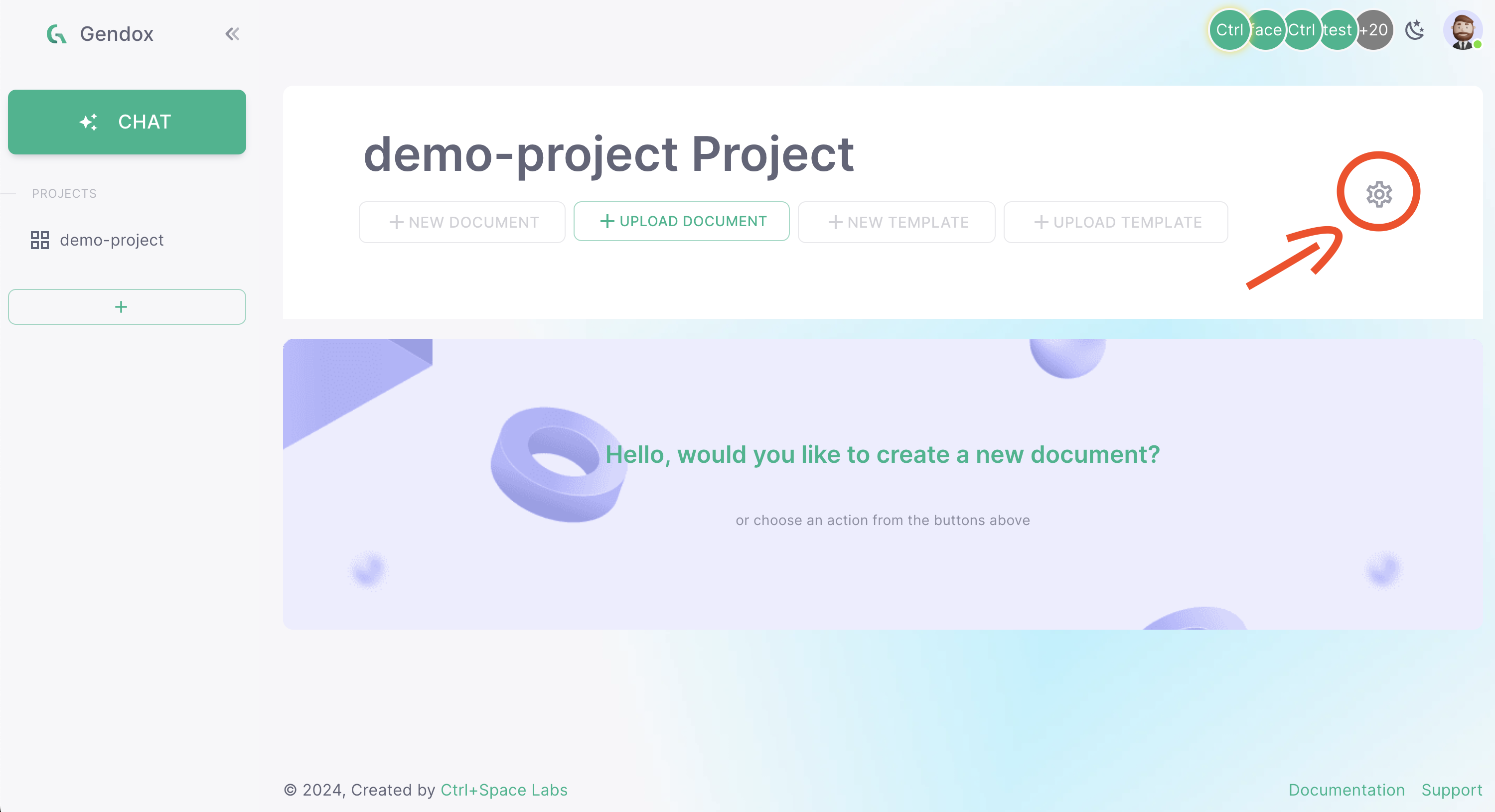
Click the Project Settings wheel button in the project's page:
-
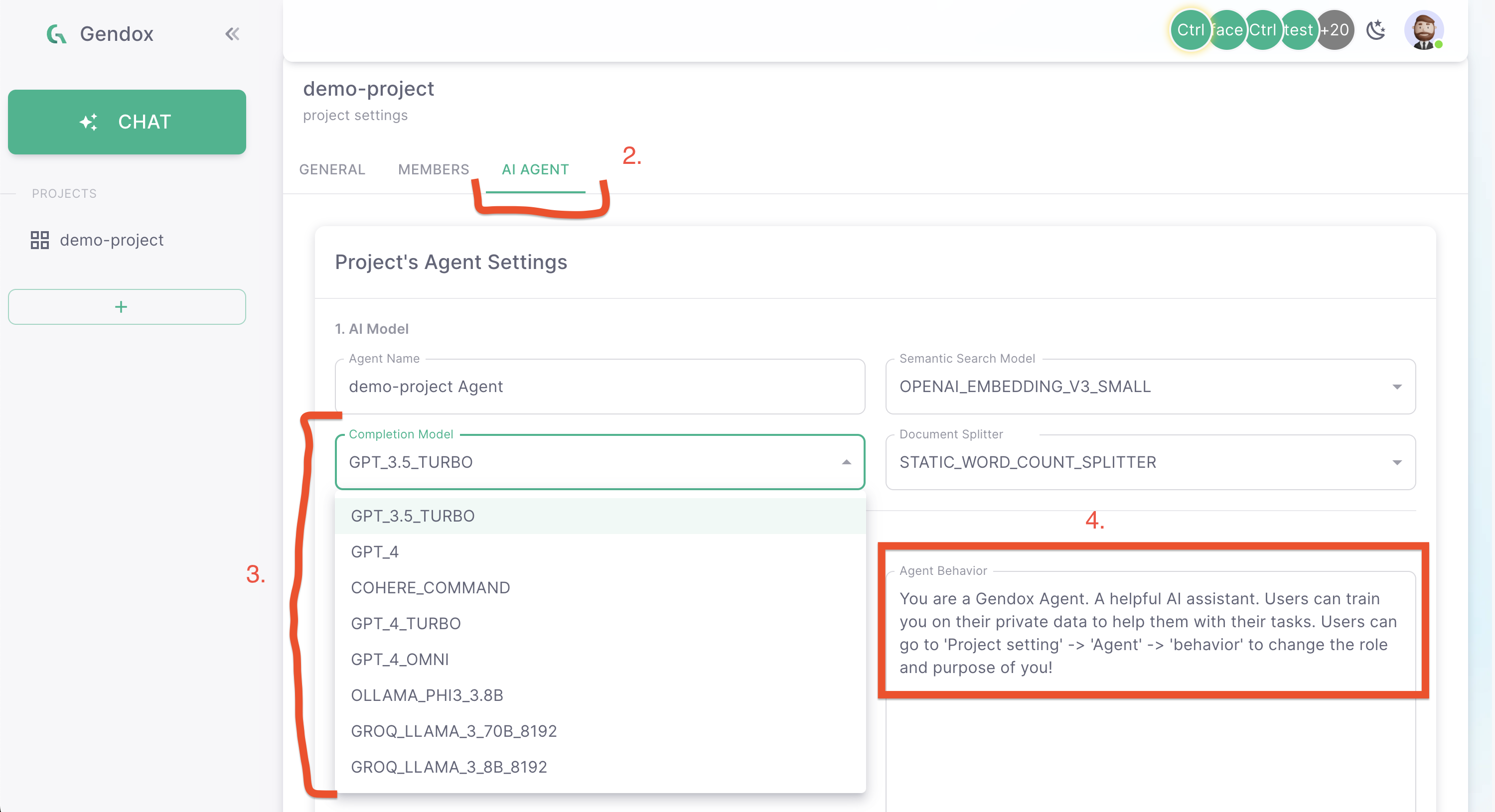
Go to the Agent tab
-
Select your preferred LLM
-
Describe the agent’s role in the Agent Behavior section
-
Choose how the agent uses your documents in Knowledge Search:
- Always: it searches the documents before every answer.
- Auto: it searches when a question needs them.
- Off: it answers without searching the documents.
-
Optionally add Skills: instructions the agent reads when a question needs them. Add one from Gendox skills, or write your own with New skill (a
SKILL.mdfile, the format Claude Code and Codex use).
Upload data
Gendox currently supports text files (e.g., .txt, .md) and PDFs. You can upload any file you want the agent to learn from.
-
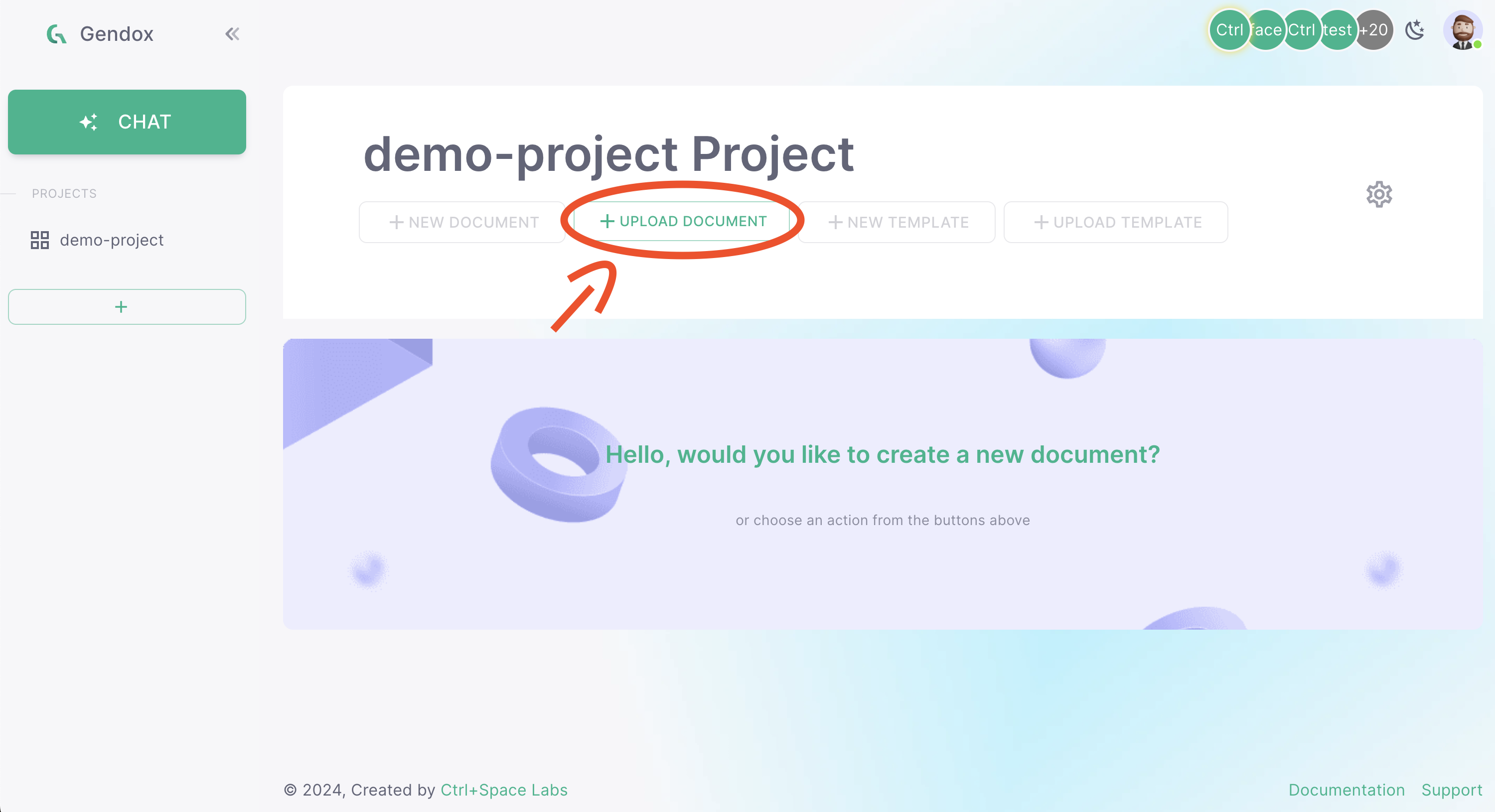
In the project page, click the Upload Documents button:
-
Drag and drop your files, or click Choose Files to browse from your computer
-
Click Upload to upload them
Train the AI Agent
-
In the General tab of your project, click the Training button
-
Wait a few minutes for training to complete
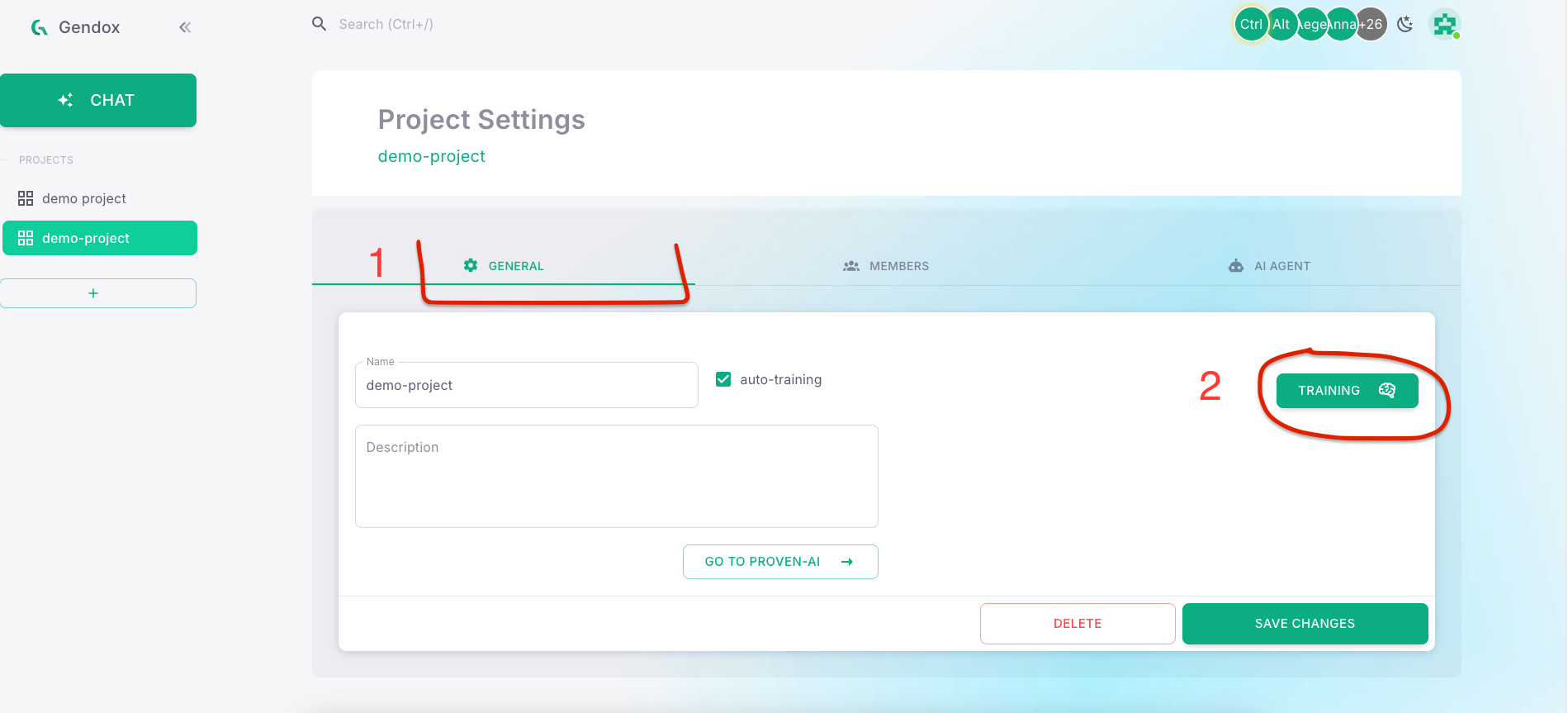
💡 If you are uploading files automatically through an API or integration, enabling Auto Training will re-train the agent every ~1 hour. You might want to disable this during the initial setup if you plan to upload many files in a short time.
Chat with the agent
-
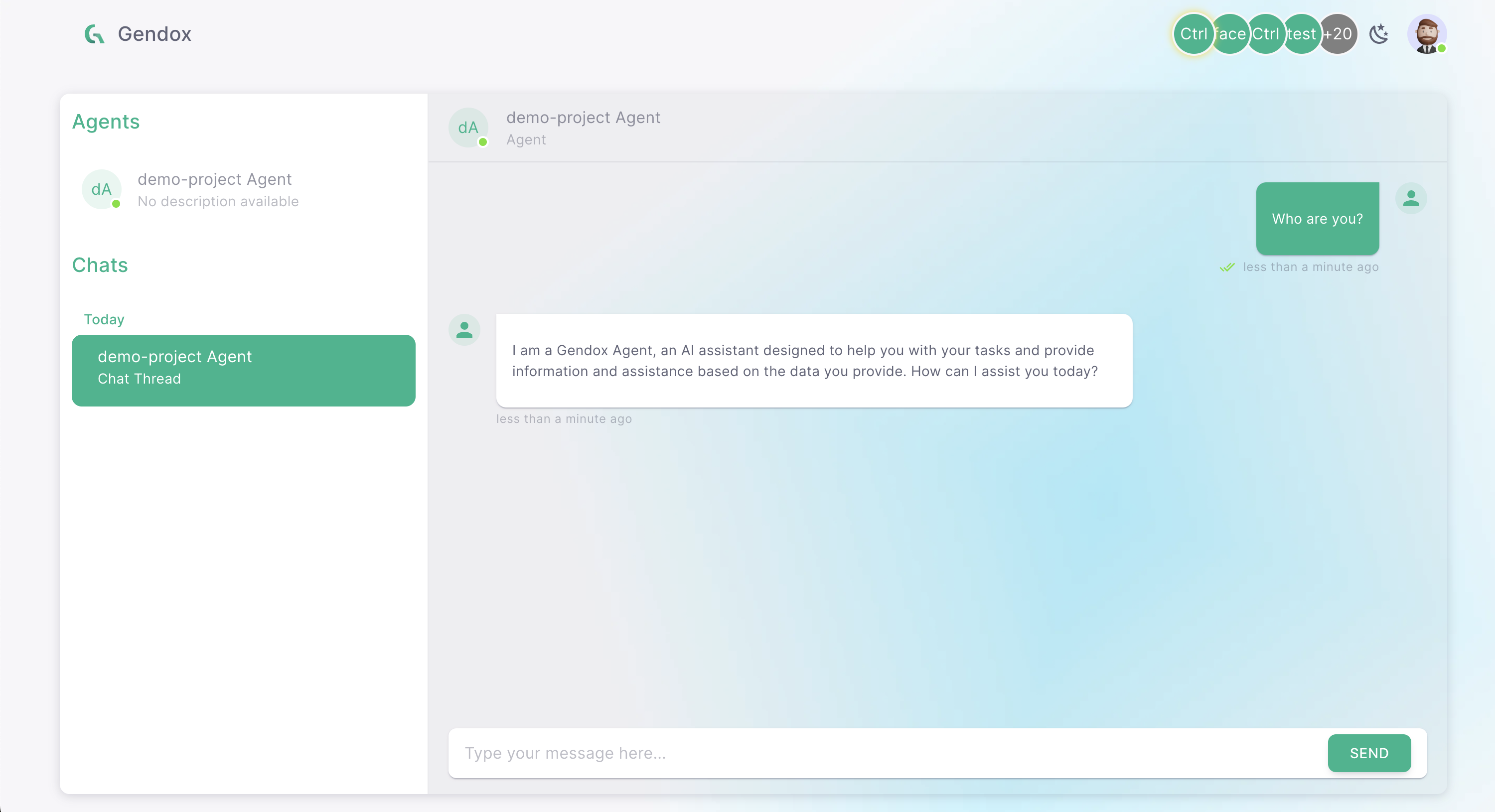
In the sidebar, click the Chat button
-
In the chat window, select the Agent or a previous thread
-
Start chatting!
The agent is also available on every page of the app as the Gendox assistant: click the Gendox icon at the bottom right. It knows the page you are on, answers from the project's documents, can take you to other pages, and can create, change and run the project's tasks.
Document analytics tasks
On the project home page, click CREATE NEW TASK to run structured batch workflows on your documents — beyond one-off chat.
| Task type | What it does |
|---|---|
| Get insights from multiple documents | Define questions once and get answers across every document in a spreadsheet-style matrix. |
| Digitize scanned documents page-by-page | Turn scanned PDFs and office files into clean, machine-readable output. |
For a full walkthrough, see Document Insights (contract cross-check example) and Document Digitization.